

Model Context Protocol (MCP) is an open protocol that standardizes how applications provide tools and context to LLMs. The MCP tool in the Responses API allows developers to give the model access to tools hosted on Remote MCP servers. These are MCP servers maintained by developers and organizations across the internet that expose these tools to MCP clients, like the Responses API.Documentation Index
Fetch the complete documentation index at: https://portkey-docs-portkey-remote-mcp.mintlify.app/llms.txt
Use this file to discover all available pages before exploring further.
Two Ways to Use Remote MCP
There are two ways to connect remote MCP servers through Portkey:- Portkey Gateway execution — Prefix the MCP server with
@portkey-mcpin the Responses API or Messages API. Portkey fetches and executes tools on your behalf. - Provider execution — Pass a
server_urldirectly in the OpenAI or Anthropic sections below. The upstream provider connects to and executes MCP tools on their servers.
Portkey Gateway (@portkey-mcp) | Provider Execution (server_url) | |
|---|---|---|
| Where tools run | Securely within your own VPC | On provider servers (OpenAI, Anthropic, etc.) |
| Data exposure | MCP credentials stay in your environment | Tokens may be exposed to provider training data and audit pipelines |
| User attribution | Actions attributed via your service/user API key | No per-user attribution |
| Audit & logging | MCP executions logged and available for audit | No execution logging or security controls |
Using a Private MCP Server? If your MCP server is behind a firewall, on localhost, or not publicly accessible, the model provider won’t be able to reach it. Check out our guide on Using Private MCP Servers to learn how to handle tool fetching and invocations on the client side.
Responses API
When using upstream inference providers like bedrock, vertex-ai that do not support executing MCP tools remotely, you can pass the prefix@portkey-mcp to the mcp tool server_label to execute the tool securely on the gateway and receive the response back from the gateway.
fields in the mcp tool object like
server_description, server_url, require_approval are not supported when using the @portkey-mcp prefix.
they are ignored if passedMessages API
When using upstream inference providers like bedrock, vertex-ai that do not support executing MCP tools remotely, you can pass the prefix@portkey-mcp to the mcp tool mcp_server_name to execute the tool securely on the gateway and receive the response back from the gateway.
OpenAI
A Responses API request to OpenAI with MCP tools enabled.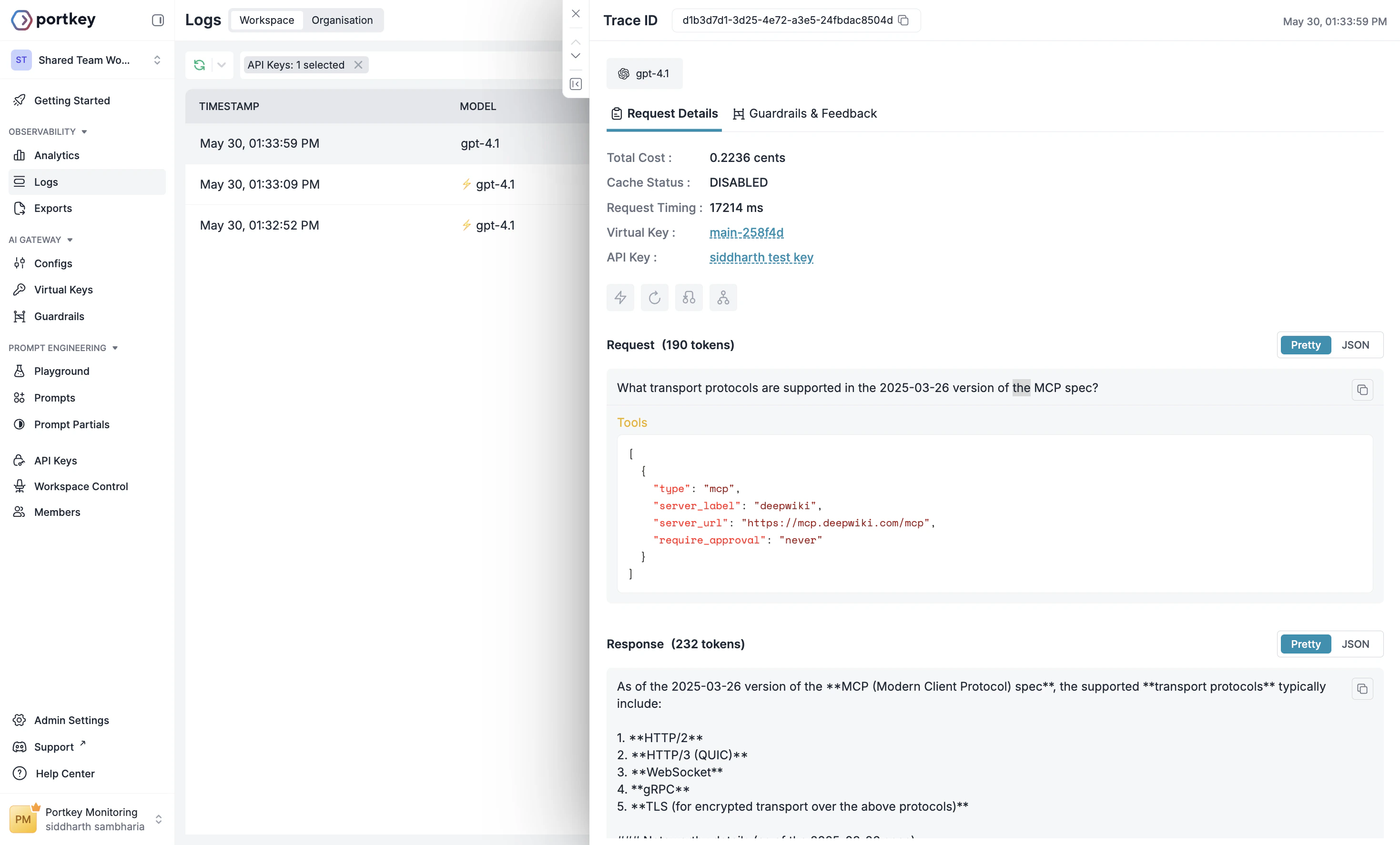
MCP Server Authentication
Unlike the DeepWiki MCP server, most other MCP servers require authentication. The MCP tool in the Responses API gives you the ability to flexibly specify headers that should be included in any request made to a remote MCP server. These headers can be used to share API keys, oAuth access tokens, or any other authentication scheme the remote MCP server implements. you can pass additional headers in the headers object or the oauth token in the authorization key. Use Stripe MCP toolheaders object. These values will also not be visible in the Response object created. Additionally, because some remote MCP servers generate authenticated URLs, we also discard the path portion of the server_url in our responses (i.e. example.com/mcp becomes example.com). Because of this, you must send the full path of the MCP server_url and any relevant headers in every Responses API creation request you make.
Using MCP Servers Registered on Portkey
If you have MCP servers registered on Portkey’s MCP Gateway, you can connect to them through the Responses API by passing the appropriate authentication in the tool definition.- No-auth or header-based auth servers: Pass your Portkey API key as
x-portkey-api-keyinside theheadersobject. - OAuth-based servers: Pass the OAuth access token using the
authorizationfield on the tool.
Header-based auth (or no auth)
OAuth-based auth
Anthropic
Claude’s Model Context Protocol (MCP) connector feature enables you to connect to remote MCP servers directly from the Messages API without a separate MCP client.This feature requires the beta header:
"anthropic-beta": "mcp-client-2025-04-04"- Direct API integration: Connect to MCP servers without implementing an MCP client
- Tool calling support: Access MCP tools through the Messages API
- OAuth authentication: Support for OAuth Bearer tokens for authenticated servers
- Multiple servers: Connect to multiple MCP servers in a single request
Using the MCP connector in the Messages API
To connect to a remote MCP server, include themcp_servers parameter in your Messages API request:
mcp_servers array supports the following configuration:
Field descriptions
| Property | Type | Required | Description |
|---|---|---|---|
type | string | Yes | Currently only “url” is supported |
url | string | Yes | The URL of the MCP server. Must start with https:// |
name | string | Yes | A unique identifier for this MCP server. It will be used in mcp_tool_call blocks to identify the server and to disambiguate tools to the model. |
tool_configuration | object | No | Configure tool usage |
tool_configuration.enabled | boolean | No | Whether to enable tools from this server (default: true) |
tool_configuration.allowed_tools | array | No | List to restrict the tools to allow (by default, all tools are allowed) |
authorization_token | string | No | OAuth authorization token if required by the MCP server. See MCP specification. |
Response content types
When Claude uses MCP tools, the response will include two new content block types:MCP Tool Use Block
MCP Tool Result Block
MCP Server Authentication
For MCP servers that require OAuth authentication, you’ll need to obtain an access token. The MCP connector beta supports passing anauthorization_token parameter in the MCP server definition.
API consumers are expected to handle the OAuth flow and obtain the access token prior to making the API call, as well as refreshing the token as needed.
Obtaining an access token for testing
The MCP inspector can guide you through the process of obtaining an access token for testing purposes.-
Run the inspector with the following command. You need Node.js installed on your machine.
- In the sidebar on the left, for “Transport type”, select either “SSE” or “Streamable HTTP”.
- Enter the URL of the MCP server.
- In the right area, click on the “Open Auth Settings” button after “Need to configure authentication?”.
- Click “Quick OAuth Flow” and authorize on the OAuth screen.
- Follow the steps in the “OAuth Flow Progress” section of the inspector and click “Continue” until you reach “Authentication complete”.
-
Copy the
access_tokenvalue. -
Paste it into the
authorization_tokenfield in your MCP server configuration.